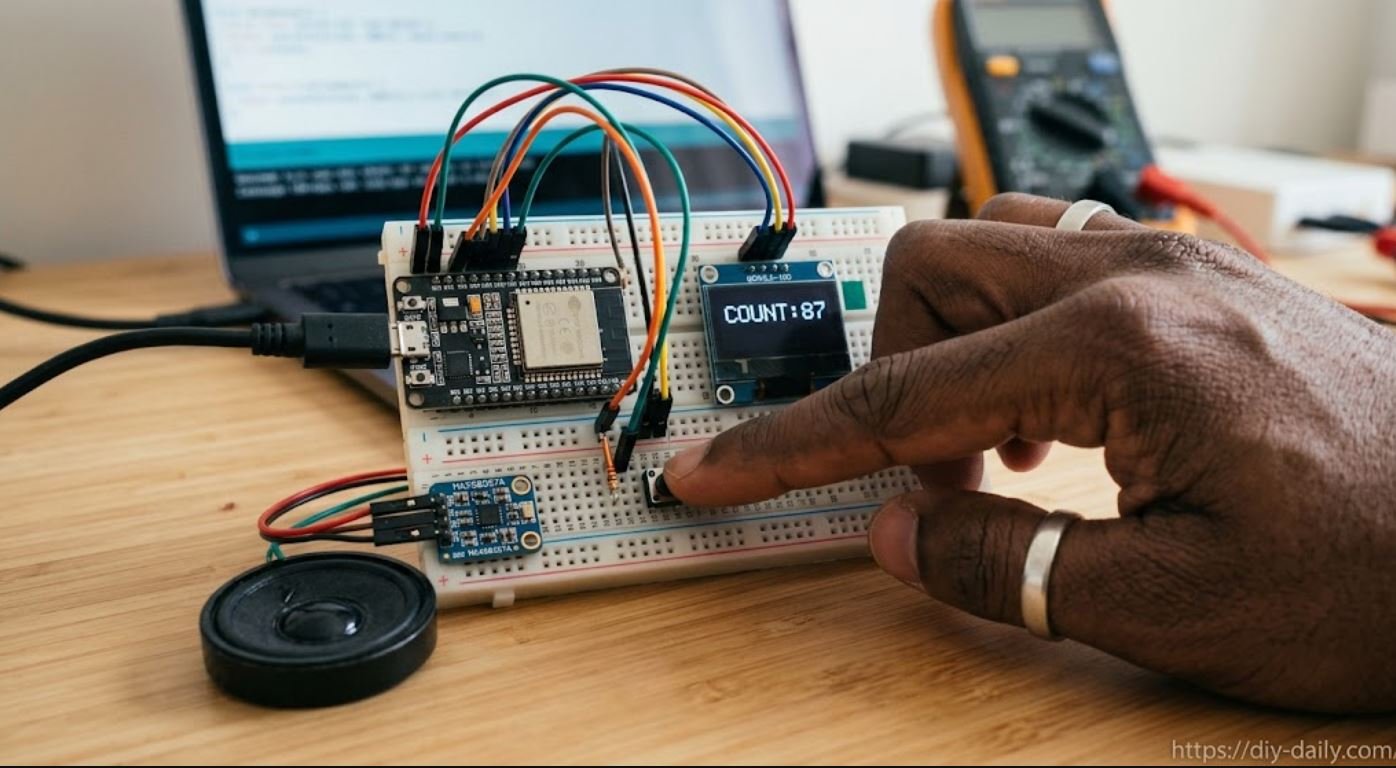
Building interactive IoT and embedded systems has become increasingly accessible thanks to powerful micro-controllers like the ESP32. This accessibility enables developers to prototype projects quickly and safely, leveraging widely supported tools and communities. This article helps readers plan hardware, firmware, and feedback features.
The article covers the design and step-by-step implementation of a Module-100 Counter, counting from 0 to 99, or 1 to 100. It includes visual feedback via an OLED display and audible feedback via voice prompts or audio alerts. The design emphasizes clarity and reliability for embedded systems and IoT projects.
1. System Overview & Architecture
The system functions as a looping counter. Whenever a trigger event occurs, such as a button press or sensor pulse, the Module-100 Counter increments.
- The Controller: The ESP32 handles the primary logic, counter variable updates, GPIO polling, and audio/display triggers.
- The Display: A high-contrast OLED display (such as a standard 0.96″ or 1.3″ SSD1306, or larger structural variants often grouped in similar project classes) visually renders the current count in large, legible typography.
- Voice Prompt / Audio: Real-time audio feedback is synthesized or played back using an onboard audio routine (or via an I2S amplifier module like the MAX98357A coupled with a small speaker, or simplified software tone/speech libraries).
2. Hardware Components Required
| Component | Function |
| ESP32 Development Board | Main processing unit (Wi-Fi/Bluetooth enabled, dual-core) |
| OLED Display (I2C SSD1306) | Renders the numerical count visually |
| Push Button (Tactile Switch) | Manual trigger to increment the counter |
| MAX98357A I2S Amplifier (Optional/Voice) | Drives audio output for voice prompts |
| 8-Ohm / 3W Speaker | Emits the vocal counter output |
| Breadboard & Jumper Wires | Circuit prototyping connections |
3. Wiring and Circuit Diagram
The peripherals connect to the ESP32 using standard communication protocols like I2C for the display and digital input/output pins for control buttons, including the Module-100 Counter.
Pin Mapping Table
| Component Pin | ESP32 Pin | Description |
| OLED VCC | 3V3 | Power supply for display |
| OLED GND | GND | Ground common |
| OLED SCL | GPIO 22 | I2C Clock Line |
| OLED SDA | GPIO 21 | I2C Data Line |
| Button Input | GPIO 15 | Pulled up internally, reads increments |
| Audio/Speaker (I2S) | GPIO 25, 26, 22 | Digital audio stream output (if using MAX98357A) |
Text-Based Schematic Layout
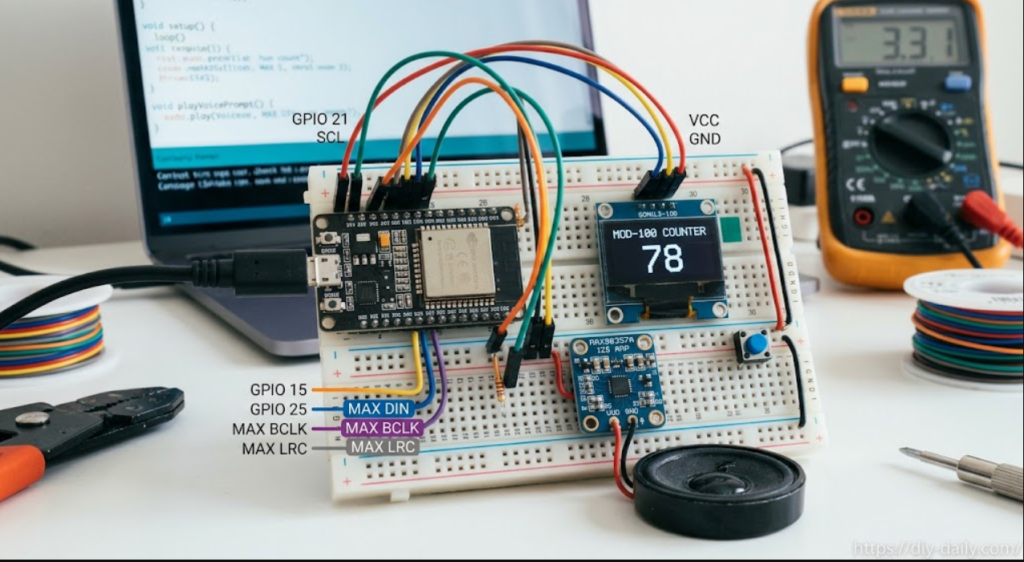
+——————-+| ESP32 || |3.3V —-+ VCC |GND —-+ GND |GPIO 21 —-+ SDA (OLED) |GPIO 22 —-+ SCL (OLED) |GPIO 15 —-+ Push Button —– GND|
|GPIO 25 —-+ DIN (MAX98357A) |GPIO 26 —-+ BCLK (Amplifier) |GPIO 27 —-+ LRC (Audio Out) |+——————-+
4. Arduino Implementation Code
Ensure you have installed the required libraries, including the Module-100 Counter, via the Arduino IDE Library Manager.
Adafruit_GFXAdafruit_SSD1306
Code
#include <Wire.h>
#include <Adafruit_GFX.h>
#include <Adafruit_SSD1306.h>

#define SCREEN_WIDTH 128
#define SCREEN_HEIGHT 64
#define OLED_RESET    -1
Adafruit_SSD1306 display(SCREEN_WIDTH, SCREEN_HEIGHT, &Wire, OLED_RESET);

const int buttonPin = 15;     // The pin that the pushbutton is attached to
int counter = 0;              // Module-100 counter variable (0 to 99)
bool lastButtonState = HIGH;

void setup() {
  Serial.begin(115200);

  // Initialize button pin with internal pull-up
  pinMode(buttonPin, INPUT_PULLUP);

  // Initialize OLED display
  if(!display.begin(SSD1306_SWITCHCAPVCC, 0x3C)) {
    Serial.println(F("SSD1306 allocation failed"));
    for(;;);
  }

  display.clearDisplay();
  display.setTextSize(1);
  display.setTextColor(SSD1306_WHITE);
  display.setCursor(10, 10);
  display.println(F("Module-100 Counter"));
  display.display();
  delay(1500);
}

void loop() {
  bool currentButtonState = digitalRead(buttonPin);

  // Detect button press (transition from HIGH to LOW)
  if (lastButtonState == HIGH && currentButtonState == LOW) {
    counter = (counter + 1) % 100; // Loops from 0 to 99

    // Trigger Visual Update
    updateDisplay(counter);

    // Trigger Voice Prompt / Audio Alert hook
    playVoicePrompt(counter);

    delay(200); // Simple debounce delay
  }
  lastButtonState = currentButtonState;
}

void updateDisplay(int count) {
  display.clearDisplay();

  // Display Title
  display.setTextSize(1);
  display.setCursor(14, 5);
  display.println(F("MOD-100 COUNTER"));

  // Display Large Number Counter
  display.setTextSize(4);
  // Center alignment estimation for numbers 0-99
  int xPos = (count < 10) ? 50 : 38;
  display.setCursor(xPos, 25);
  display.print(count);

  display.display();
}

void playVoicePrompt(int count) {
  // Placeholder function for voice module or text-to-speech engine.
  // In a full hardware setup, this can route to an MP3-TF-16P module
  // or trigger an I2S audio stream matching the current count.
  Serial.print("Voice Prompt Triggered for count: ");
  Serial.println(count);
}5. Software Workflow & Logic
- Initialization: The ESP32 boots up, sets up the I2C bus for the OLED screen, and configures the pin interrupt/pull-up states for the input button.
- State Monitoring: The main
loop()polls the button state. When pressed, the modulus operator (counter = (counter + 1) % 100) ensures the tracking wraps safely back to0after hitting99. - Display Refresh: The SSD1306 frame buffer clears and redraws the updated integer using large scaled vectors (
setTextSize(4)), ensuring readability from a distance. - Voice Prompt Execution: The
playVoicePrompt()function executes. For physical builds without cloud dependencies, developers typically pair this with a serial MP3 module (like the DFPlayer Mini) containing pre-recorded audio tracks corresponding to numbers, triggered via UART serial commands.
6. Video Reference & Further Exploration
- Visual Demonstration Concept: You can check out implementations of similar interface pipelines via community guides such as the ESP32 AI Voice Assistant & OLED Display Project on Hackster which demonstrates parallel task management, I2S sound handling, and screen rendering.
- Audio Expansion: To make the voice prompts sound entirely organic rather than static sound clips, integrating an ESP32 text-to-speech library or hooking up an external synthesizer chip provides dynamic audio feedback for every numerical increment.
